Google has expanded
the historical search query data to 90 days. The number of queries
reported has increased as well: the report will now list the top 2,000
for each day of the selected date range (vs. the previous top 1,000).
This is great news, as this is data not available anywhere else and when
looking at trends, the more information, the better. Google has made a
few other minor adjustments to this data recently. So if you use Google
webmaster tools query data, see below for all the details of how these
reports work.
What’s In the Top Search Queries Report
First, a refresher on what this data is all about. The top search
queries report (available in Google webmaster tools for sites you’ve
verified ownership of by selecting Your site on the web > Search queries) lists the top queries that brought traffic to your site from Google organic search (from all countries and properties).
Summary Data
For the selected data range, the report shows the total number of
queries that brought traffic to the site, the total impressions and
clicks the site received, and the number of impressions and clicks for
the reported top queries.
Query-Specific Data
For each query, the report notes:
- Number of impressions - how many searchers saw the site in search results for that query
- Number of clicks - how many searchers clicked on the search result for that query
- Click through rate - The percentage of the time searchers who saw the site in search results for that query clicked on it
- Average position - the average position the highest ranked URL for that site appeared in search results for the query across all searchers
- In addition, you can find out the change for each of these data points from the previous period. However, the change percentages aren’t available for time periods longer than 30 days. The change details used to be visible by default, but they’re now off by default. You’ll need to click the With Change button to see them in the report (although they’ll be included automatically with the CSV download). If you have the change percentage displayed, you’ll need to turn that off in order to expand the date range beyond 30 days.
You can click into any query to get more specific data, including the
pages that ranked for the query, and the impressions, clicks, and
click-through rate at each position the site ranked.
Country and Property-Specific Data
Use the filters to drill into what queries brought traffic from
Google properties (web, video, images, mobile web, and smartphones) and
from specific countries.
How the Numbers Are Aggregated
As I explained in a previous post,
the numbers can be tricky and it’s important to understand what data
you’re really looking at. These reports now list the top 2,000 queries
that brought traffic to the site for the selected time period. That
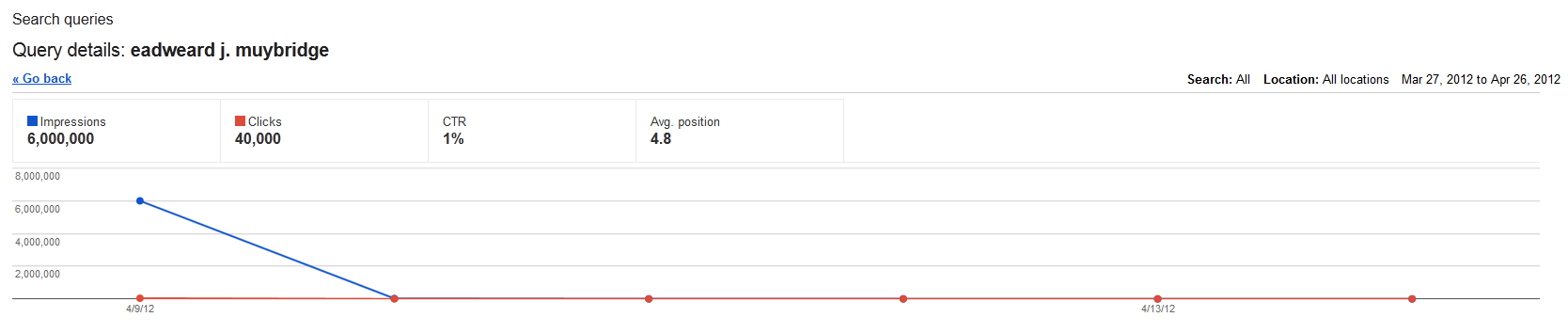
means that if a query wasn’t one of the top 2,000 for any days in the
selected range, data won’t be reported for it. In the example below, the
time period is 30 days, but only 6 of those days have data reported for
the query (as illustrated by the dots in the graph).
Generating Data
When generating or downloading the data, keep in mind the following:
- The default ending data in the user interface display is today’s date, but reporting is typically 2-3 days behind so check the last date reported in the graph by hovering over the last dot. The default starting date of the range is 30 days before the end date. And because this end date is generally three days ahead of what’s actually reported, the actual date range generally shown by default is 27 days. Make sure you adjust the dates before analyzing data or comparing it to other time periods.
- Because the default shown date range is 27 days, the download available from the Python script is also 27 days.
It’s great that Google is offering more data (both number of queries and length of time). Just be sure that as you use this data, you understand exactly what you’re looking at and comparing (both in terms of data range and date reported per day).


No comments:
Post a Comment